
How to Convert an FD-258 Fingerprint Card to an EFT File at Home
A complete walkthrough showing you how to convert a scanned FD-258 fingerprint card into an ATF-ready EFT file using SLAP & ROLL's secure online tool.
The ATF eForms portal accepts fingerprints one of two ways: a mailed FD-258 card, or an uploaded
EFT file. The EFT route is the one you want - faster processing, no envelope in the mail, no
physical card to lose. This guide walks through the entire path from a blank fingerprint card to a
downloaded .eft file ready to attach to your eForm 1 or eForm 4, using SLAP & ROLL
and a standard home flatbed scanner. Start to finish is about ten minutes once you have the card in
hand.
What an EFT file actually is
An EFT file (Electronic Fingerprint Transmission) is a file built to the FBI's Electronic Biometric Transmission Specification (EBTS). Inside it are your ten rolled fingerprints, your slap impressions, and a biographic record containing your name, date of birth, SSN, and other identifying fields. While the fingerprint records follow the standard FBI format, the biographic fields are structured specifically for what the ATF requires for eForms submissions. The file itself is not locked, password-protected, or encrypted. You just need a compatible program to open and read its contents.
EFT files typically store fingerprint records in one of two formats: Type-4 (an older, widely used format) or Type-14 (a newer format). SLAP & ROLL generates both versions for you. (For a deep dive into the difference between these formats, see our guide on the EFT file format explained.)
What you need
Nothing exotic. Most of this is probably already on your desk.
- A computer with a web browser. Chrome, Firefox, Edge, or Safari. Nothing to install.
- A flatbed scanner capable of 500 DPI or higher. Almost every consumer all-in-one printer sold in the last fifteen years handles 600 DPI. If you don't have one, the Epson Perfection V39 and Canon CanoScan LiDE 400 are under $100.
- An FD-258 fingerprint card. Either a pre-printed card from a law-enforcement supply vendor or our free printable template.
- Ink. A cheap fingerprint ink pad (the $5 ones on Amazon work perfectly), or prints already rolled at a sheriff's office.
Optional: a helper to make rolling your non-dominant hand easier.
If you haven't rolled your card yet, start here: How to roll your own fingerprints on an FD-258 card.
The SLAP & ROLL workflow
Six steps. The first two happen at your kitchen table; the rest happen in the browser.
Roll your prints on an FD-258 card
If you already have a completed card from a police department or sheriff's office, skip to Step 2.
Otherwise, you'll need to roll your prints. You can use a pre-printed card or download and print our free printable FD-258 template on standard printer paper. Follow our step-by-step fingerprint rolling guide to capture your ten rolled prints and four slap impressions.
Note that you do not need to fill out the demographic block at the top of the card; SLAP & ROLL only reads the fingerprints. If a few prints are less than perfect, don't worry. You can easily fix them with a small sticker, and the quality check in Step 3 will let you review everything before you generate your file.
Scan the card
Place the completed card face-down on the flatbed scanner. Use these scanner settings:
- Mode: Grayscale
- Resolution: 600 DPI (500 DPI minimum; 600 recommended)
- Format: PNG or TIFF - not JPEG
We recommend 600 DPI to clear the standard 500 PPI biometric floor. SLAP & ROLL will automatically verify your scan's resolution on upload and notify you if the resolution is too low to process.
Save the scan to your computer. For a full breakdown of scanner settings and common pitfalls, see What DPI do I need to scan a fingerprint card?
Upload and check quality (free)
Sign in at slapandroll.com and click Process New Card. Drop in the scanned image. SLAP & ROLL uploads it, detects the twenty fingerprints on the card, and runs each one through NIST's NFIQ algorithm (Fingerprint Image Quality, 1 = excellent, 5 = poor). For what the score actually measures, see Understanding NFIQ scores.
You'll see:
- Every detected fingerprint highlighted on the card image
- An NFIQ score per print
- The detected scan resolution
There is no explicit pass/fail badge. If the Create EFT button is available on the analysis page, the card is good enough to generate a file. If the button is disabled, the software couldn't detect all twenty prints (usually because the card is rotated, cropped, or a print is missing) and you'll need to re-scan or re-roll before continuing. If the person does not have a finger, the card will never show all twenty. See How to create an EFT file with amputated or missing fingers.
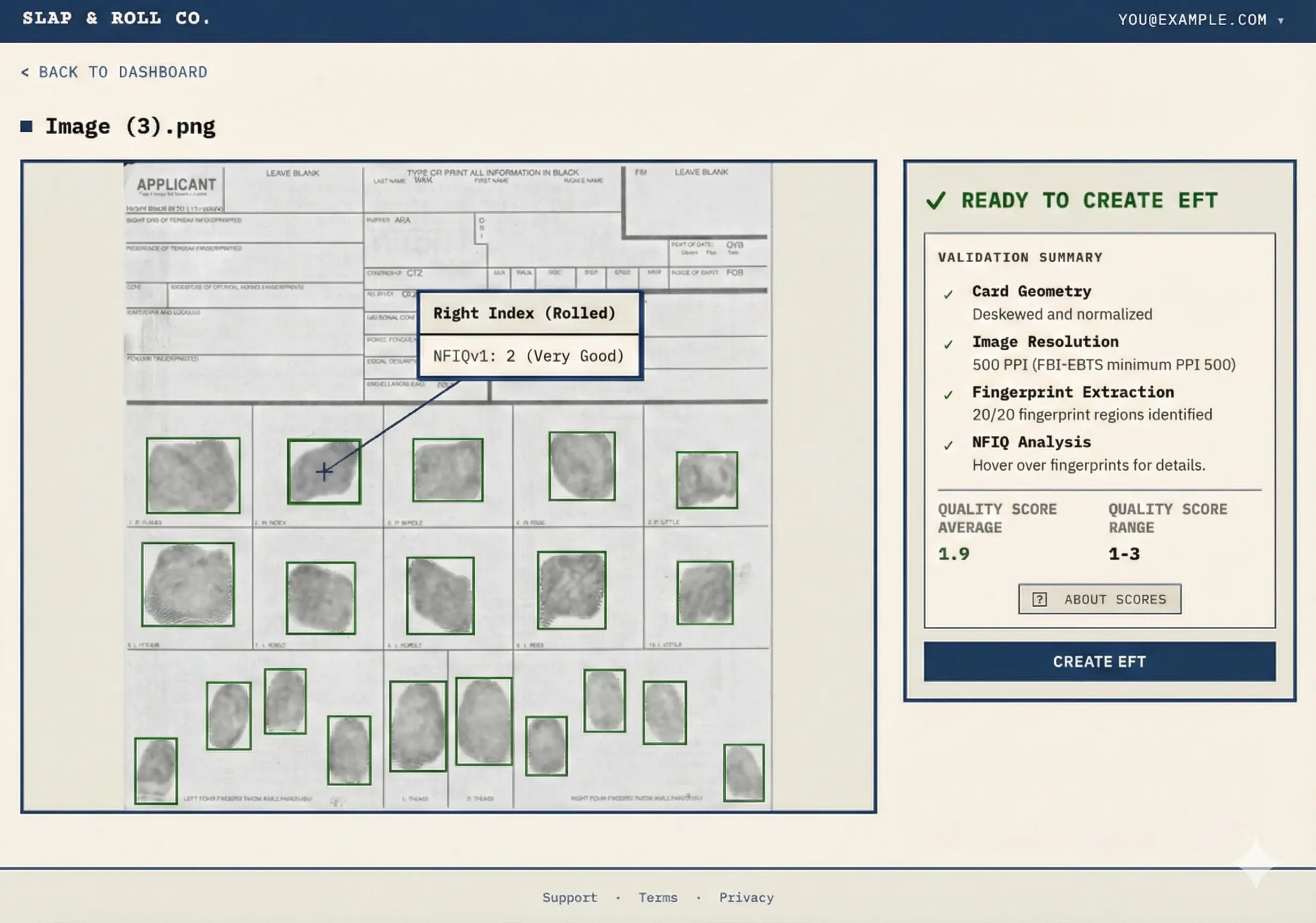
This quality check is free. You can re-upload as many times as you want before paying a cent. Most cards produce majority 1–3 scores. The ATF eForms portal currently accepts submissions across the full range of NFIQ scores, so a 4 or 5 on a finger or two is not a reason to worry about the submission. Aim for clean prints anyway: the FBI matcher reads them more reliably, policy can change, and a re-roll at your kitchen table is always cheaper than re-rolling after the fact.
This is the core difference between SLAP & ROLL and the mail-in and kiosk routes: you see the quality of each print before you pay, and you can iterate for free. Other paths hand you a file without showing you what's inside it.
Understanding NFIQ scores · How to tell if your fingerprint rolls are good enough for ATF
Pay to create ($20)
Once you're happy with the quality, click Create EFT. You'll be sent to the checkout page to pay the $20 fee for this card. This payment unlocks EFT creation for that specific card; quality checks on other uploads remain free.
One EFT file covers every eForm you'll ever submit as long as your name, date of birth, SSN, and other biographic fields stay current, so the $20 cost is usually a one-time fee per applicant, not a per-submission cost. Even if your biographic data changes in the future (such as a new address), you can update the file for free using our EFT editor. If you are filing as a trust, each responsible person (RP) will need their own EFT file, which can be generated using individual $20 single-card payments or a Pro subscription.
Enter your information in the Privacy Vault
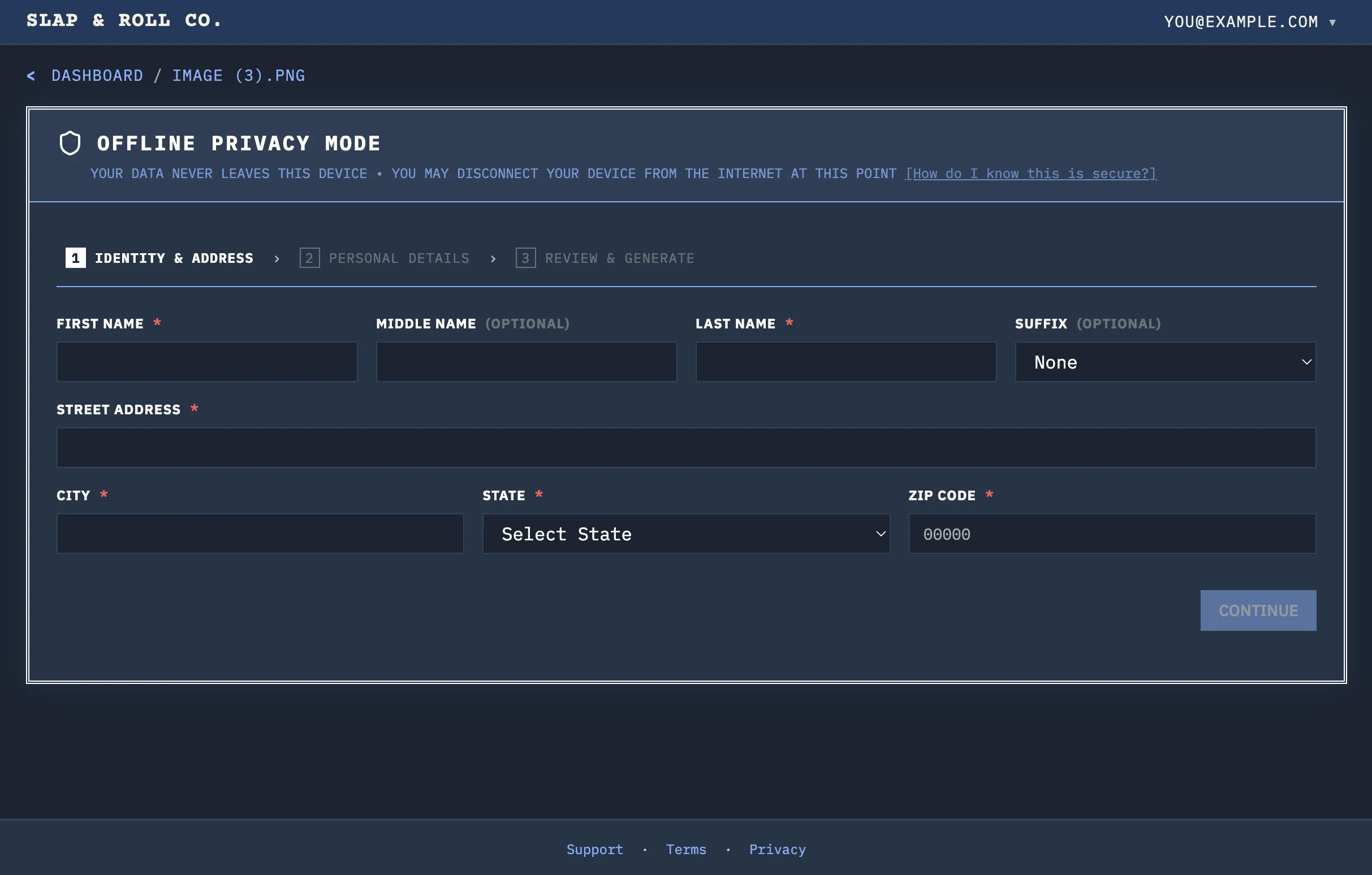
After payment, you enter the Privacy Vault, a client-side wizard that assembles your EFT file entirely in your browser. Before the form becomes interactive, the fingerprint crops are pulled from our servers to your browser's memory. Once the crops are downloaded, you can disconnect from Wi-Fi and complete the rest of the process offline. Your name, SSN, date of birth, and every other biographic field stay on your device.
The wizard has three stops:
Stop 1. Identity. Full name (Last, First Middle), date of birth, sex, race, and place of birth. These are the required fields on the EFT biographic record.
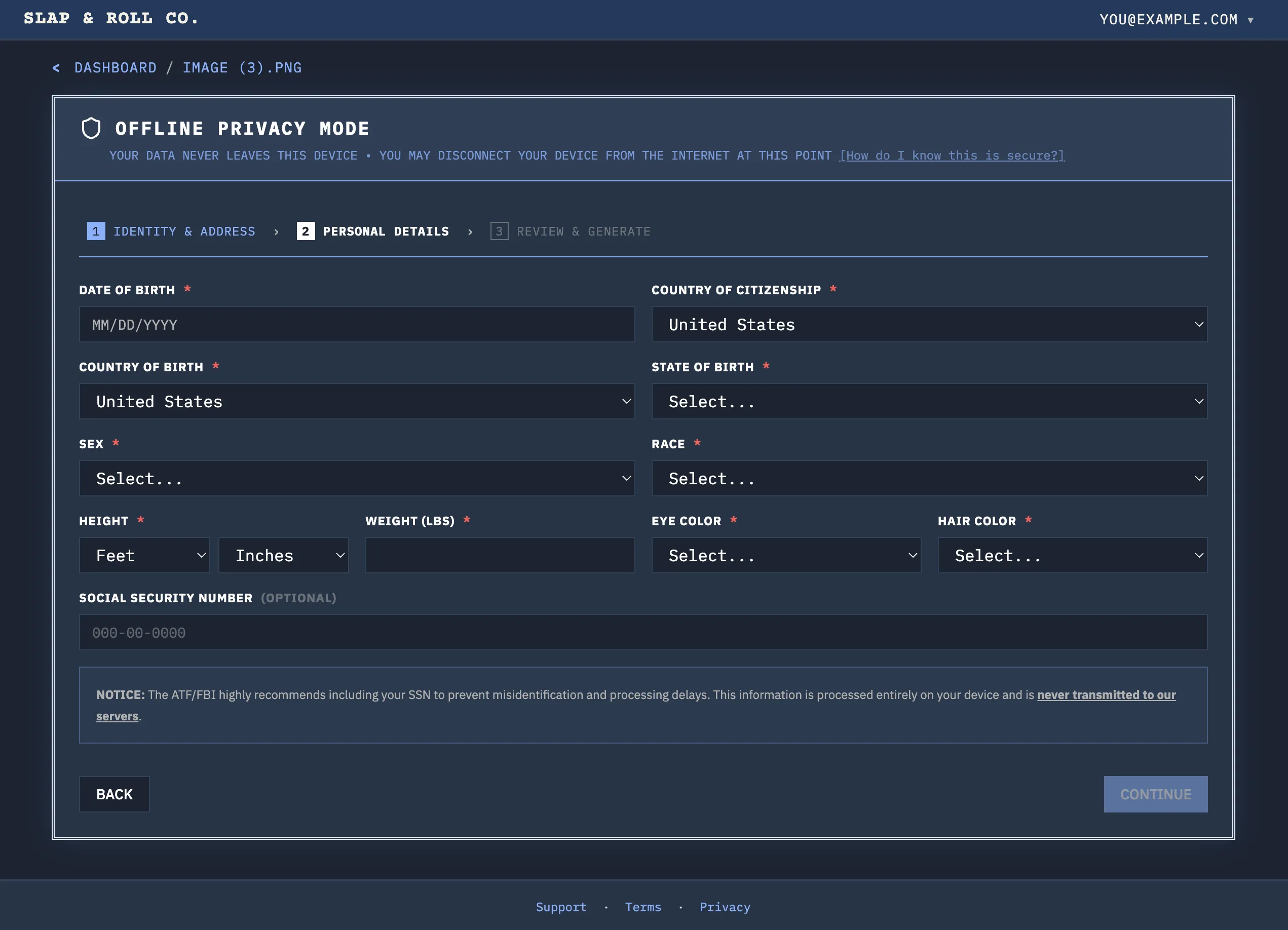
Stop 2. SSN and optional details. SSN (recommended to avoid delays and misidentification during background checks) and optional fields like height, weight, eye color, hair color, and address. The SSN input is masked by default; click Show to verify what you typed.
Stop 3. Review and generate. A read-only summary of every field you entered. Correct anything wrong before clicking Generate & Download EFT.
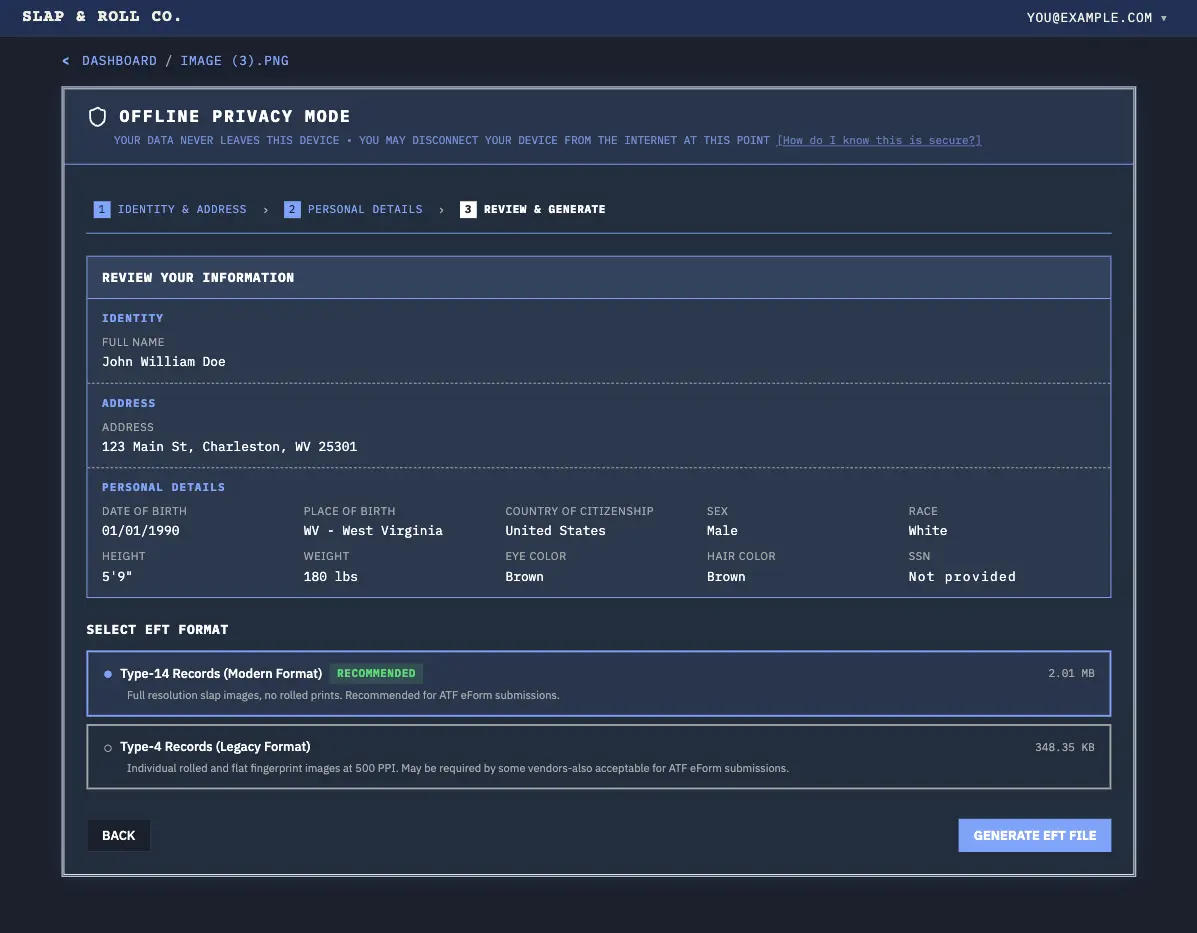
The file is assembled entirely in your browser. There is no network call and no server round-trip. This is by design. You can verify it by opening your browser's network tab, watching the Generate click produce zero outbound requests, and confirming it yourself.
Download your EFT files
When generation finishes, the browser prompts you to save two files: a Type-14 EFT and a Type-4 EFT. Download and keep both files. Both contain your biographic information and fingerprints, but they package the images differently. You can use either format for direct ATF eForm submissions, but certain third-party systems only support the older Type-4 format. See the section below for details on which file to use for your specific submission.
Upload the file to the ATF eForms portal as part of your eForm 1 or eForm 4 submission.
Once attached to your eForm, the EFT file is forwarded from the ATF to the FBI's Criminal Justice Information Services (CJIS) division for the fingerprint-based background check. The FBI's matcher extracts minutiae from the fingerprint images and compares them against the criminal history databases.
Approval timelines can vary greatly depending on ATF workload and your personal record. For a breakdown of each stage your eForm passes through, see Understanding eForm statuses: what each stage means.
Common mistakes and how to avoid them
- Scanning at 300 DPI. Scanners often default to 300 DPI. You must change the resolution to 600 DPI explicitly for the fingerprint details to be properly processed.
- Saving as JPEG. JPEG compression destroys the ridge detail the matcher needs. Use PNG or TIFF.
- Rotated or cropped scans. While SLAP & ROLL automatically rotates and crops scans, it can occasionally misalign them. To ensure clean detection, align the card flat against the scanner bed and ensure all edges are scanned with a small margin.
- Over-inking. If the ridges are filled in with too much ink, detail can be lost. Try using a lighter touch and blotting excess ink onto scrap paper first.
For a detailed look at what good and bad prints actually look like, see How to tell if your fingerprint rolls are good enough for ATF.
Type-4 vs. Type-14 - which file should you use?
Both are valid FBI EBTS formats. We provide both to ensure maximum compatibility:
- Type-14 (Newer format): This is the newer format for fingerprint records. While the ATF eForms portal currently accepts both types for direct submissions, Type-14 is recommended for direct uploads as it utilizes newer variable-resolution packaging. We provide this file because we cannot predict when the ATF might phase out support for the older Type-4 format.
- Type-4 (Older format): This is the older, fixed 500 PPI format. Many third-party dealer systems and submission services run on older software that cannot process Type-14 records. If you are having a third-party vendor handle your eForms submission on your behalf, you should provide them with the Type-4 file.
We recommend downloading and storing both files so you have the correct format ready for any direct submission or third-party filing system. For a deeper look at the technical record format differences, see our guides on the EFT file format explained and ATF eForm fingerprint requirements.
What this costs
- Quality check: free. Upload as many cards as you want. Pay nothing until you generate an EFT.
- Single EFT file (Pay-As-You-Go): $20. One EFT file covers every eForm 1 or eForm 4 you ever submit as long as your biographic data stays current, so this is usually a one-time payment per applicant, not a per-submission cost. If your biographic data changes in the future (such as a new address), you can update the file for free using our EFT editor.
- Unlimited EFTs (Pro): $50/month. For FFL dealers generating for multiple customers, trusts with multiple responsible persons, or anyone planning back-to-back re-generations.
No account upgrade is required to start. The dashboard accepts uploads immediately after sign-in, and the $20 Pay-As-You-Go charge is a one-time payment per card.
A note on privacy
SLAP & ROLL never receives your SSN, name, date of birth, or any biographic field in the EFT file. The scanned card image is uploaded so we can extract and crop the twenty fingerprints; the biographic record is assembled entirely in your browser after crops are downloaded to your device. This is by design. You can verify it by disconnecting from the internet after Step 5's crop download completes and confirming the Generate & Download step still works.
Card image uploads are encrypted at rest on our servers and auto-deleted after 30 days. You can delete them manually from your dashboard at any time.